You've got a product. You've got a phone. You don't have a studio, you don't have a photographer, you don't have a budget for a three-day shoot.
And yet you need content that looks professional. For Instagram, for the site, for ads, for everything. And you need it in different formats — vertical for stories, square for feed, horizontal for the web. The same image, adapted to every place it has to live.
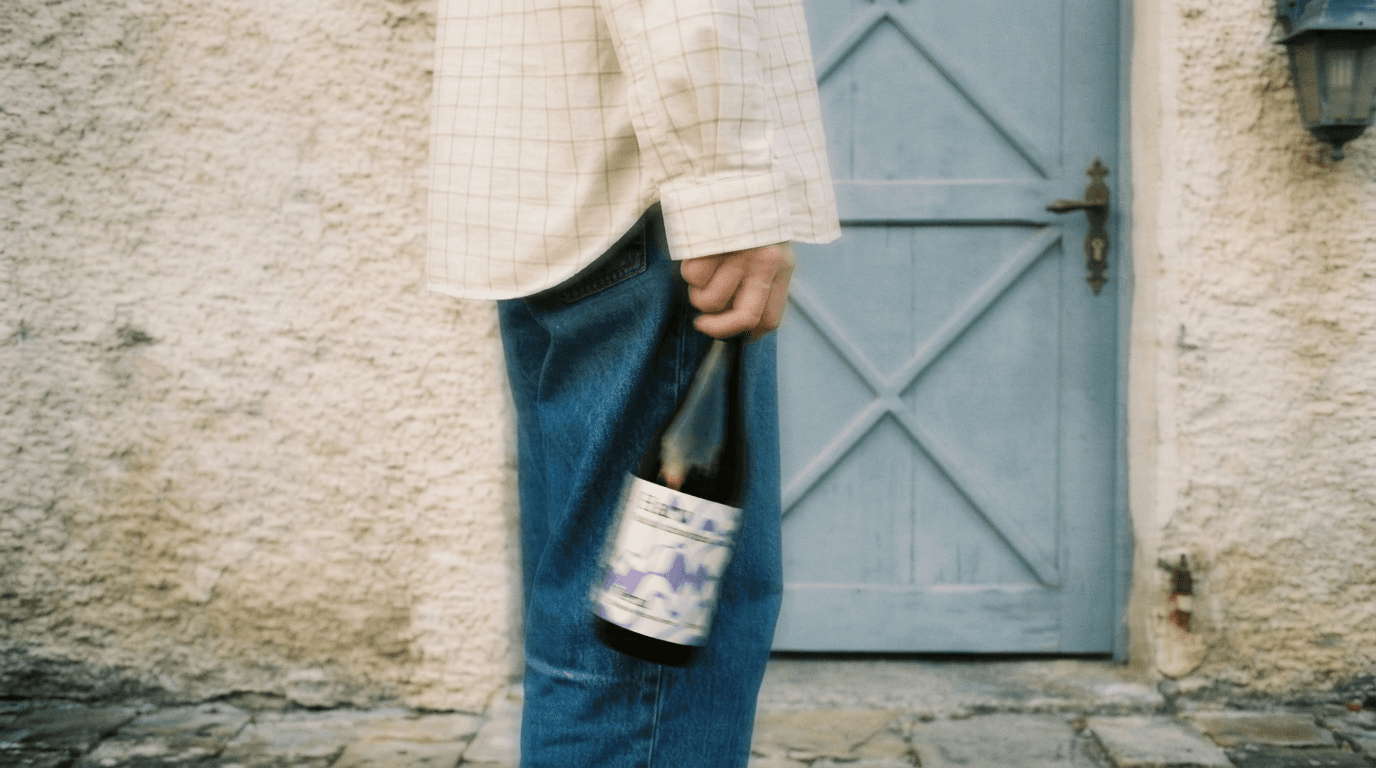
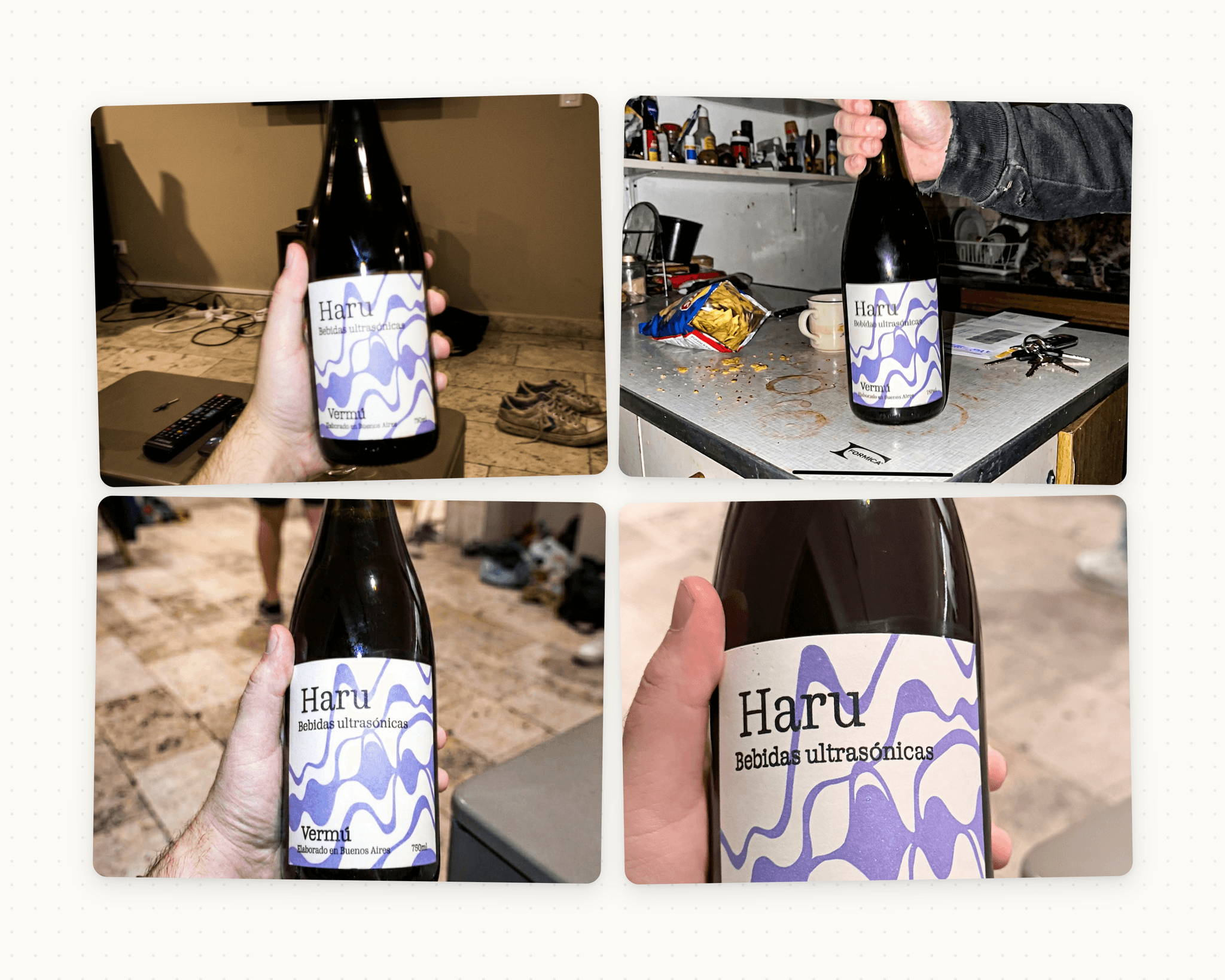
This is what we did with a Haru vermouth bottle. Four photos shot with a phone in a kitchen. No flash, no tripod, nothing special. The result was a complete set of brand content ready to publish.
Step 1: shoot with whatever you have
Pick up the phone. Use whatever light you have on hand — a window, a lamp, the kitchen light. And take casual photos of your product. Any angle, any background.
The temptation is to wait for perfect conditions. Don't. Phone photos are the raw material. What matters is that the product is visible: the label readable, the colors recognizable, enough detail for the AI to understand what it's looking at.
With Haru we shot four photos in the kitchen. One held in the hand with a TV remote in the back. Another on the counter with keys and crumbs next to it. The kind of photo you take in 30 seconds without thinking.
Those four photos are everything you need.
Step 2: from phone photo to professional shot
Drop the photo on the Dual canvas and use the Product Photo Quick Action. One click. No setup.
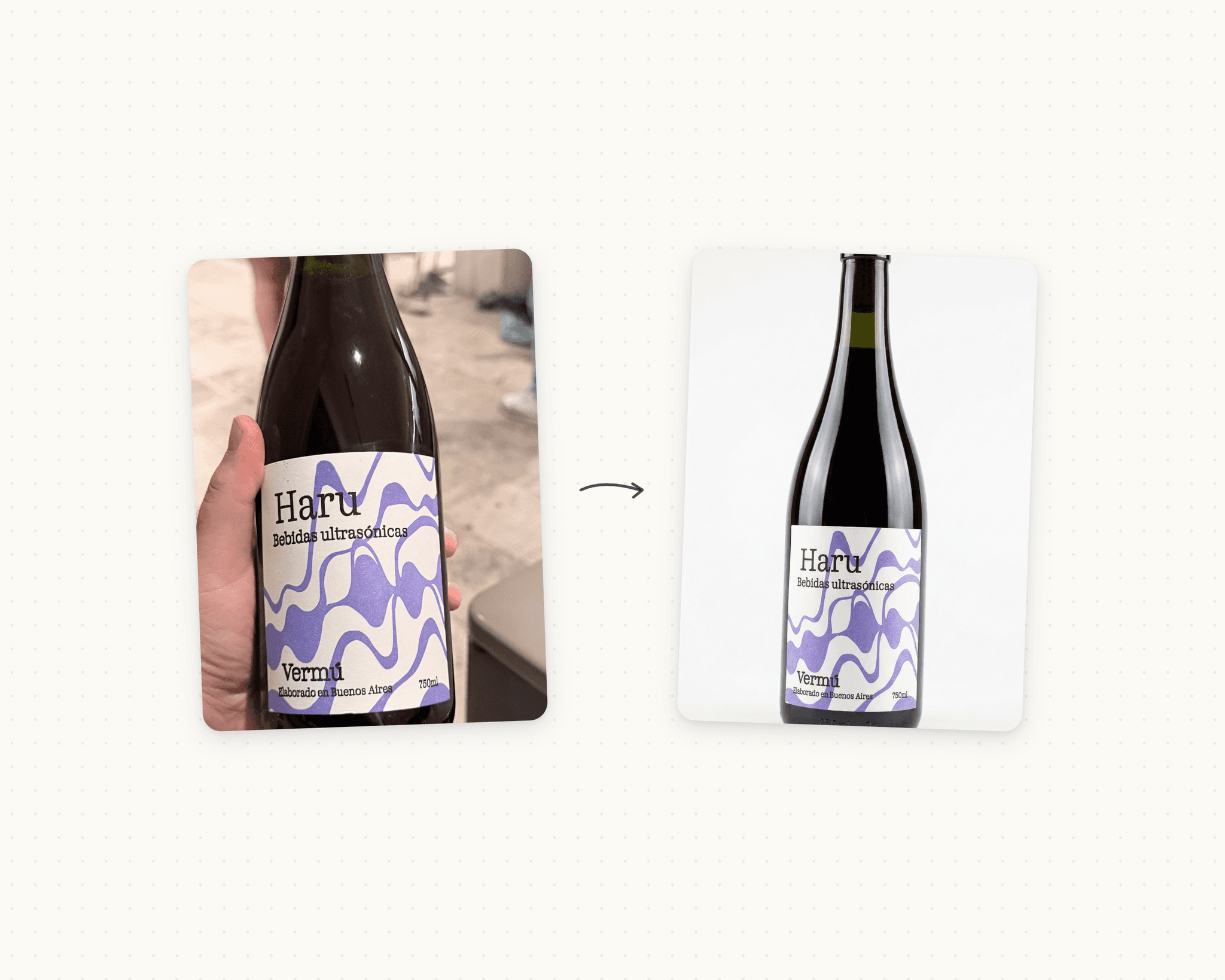
What it does: takes your phone photo — with the messy background, uneven light, imperfect framing — and turns it into a product shot with infinite background, professional lighting, and a clean finish. Like you'd rented a photo studio for an hour.
The Haru bottle went from a photo with the owner's hand holding the bottle against a kitchen wall, to an image with a white backdrop, controlled light, and a perfectly legible label. Same product, different level.
And the key part: the Quick Action preserves your product as it is. It doesn't invent details, doesn't change the label, doesn't shift colors. It's your bottle, with better light.
Step 3: Pinterest inspiration, remixed with your stuff
This is where it gets interesting.
Everyone has a Pinterest moodboard. Product photos we love: that natural-wine bottle held up against the sky, that other one sitting on a wooden table in golden-hour light. Styles we want for our brand but that would normally require a production.
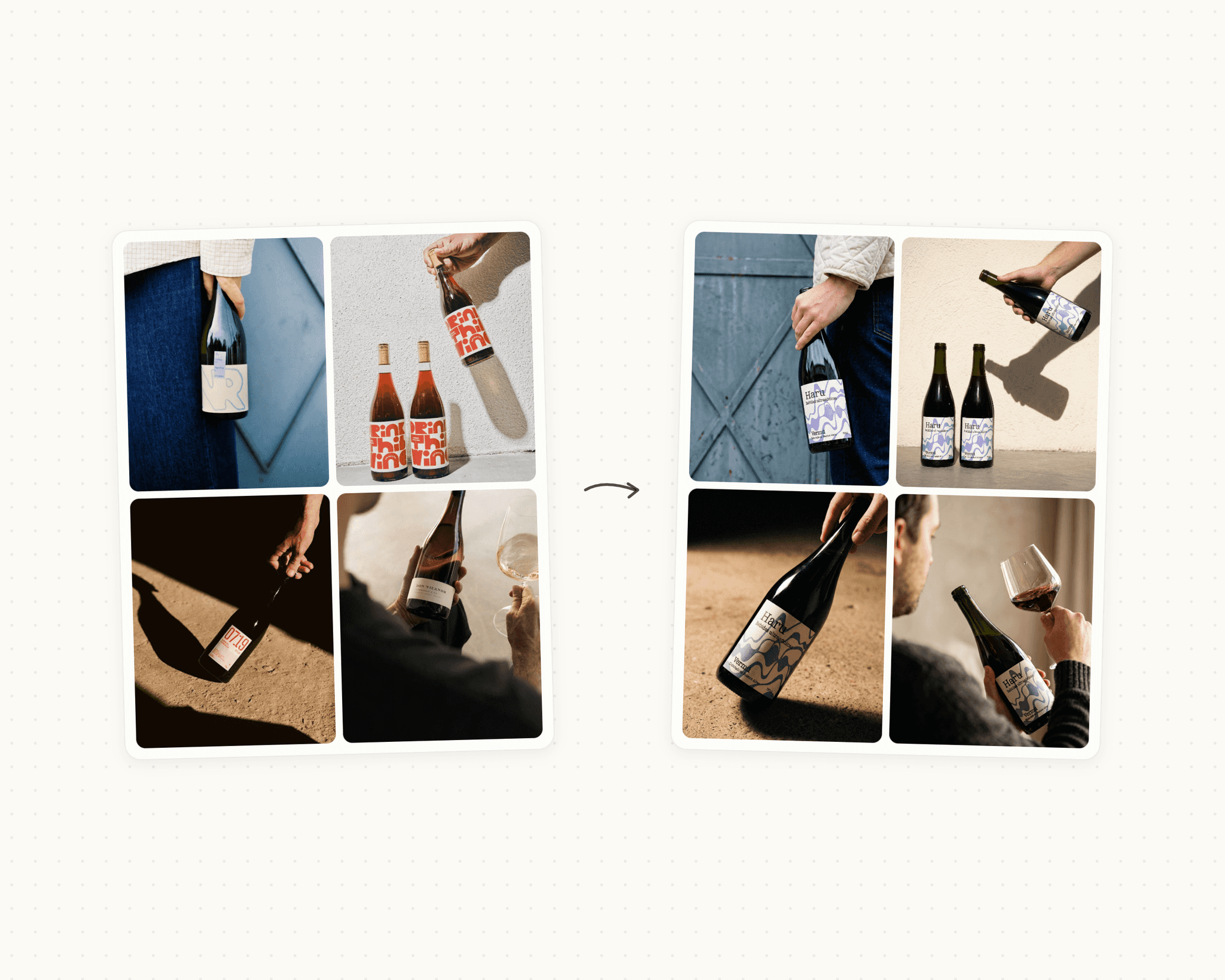
The flow has an intermediate step that makes all the difference. You download those Pinterest images and drop them on the canvas. But instead of using them directly as visual reference, you convert them to text: select the image and use Convert to extract the prompt. Dual analyzes the photo and gives you back a detailed description of what it sees — the composition, the lighting, the style, the mood.
That prompt is your starting point. You edit it, drop what doesn't help, add details about your product, adjust the tone. And with that modified prompt you Remix on top of your product photo. The AI generates a new image of your bottle with the style you extracted from Pinterest, but without copying the original photo.
It's image to image — that's why it's Remix. Input and output are the same media type. What changes is style and composition, but your product stays.
With Haru we took four reference photos from Pinterest — natural-wine bottles with an indie aesthetic, casual photos with good light. From each one we extracted the prompt, tuned it, and remixed the vermouth bottle. The result was four variations that feel like a complete shoot: same bottle, four different styles, all aligned with the brand's visual identity.
It's not copying the Pinterest photo. It's distilling what you like about it into a prompt and applying it to yours.
Step 4: one asset, every format
You've got your product images. Now you need them to work everywhere.
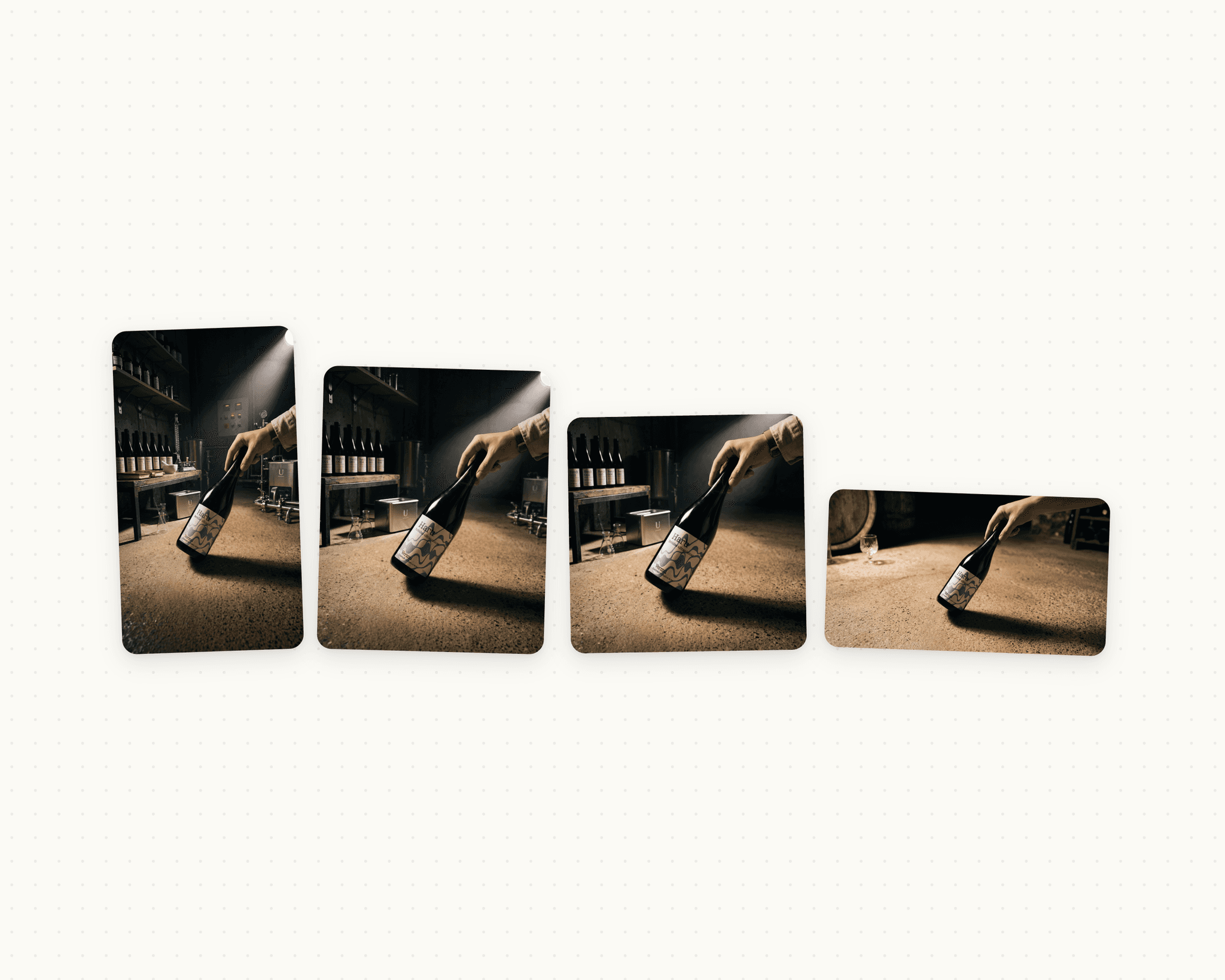
Instagram stories asks for 9:16. The feed works better at 4:5. A square post is 1:1. And for the web or YouTube you need 16:9. Cropping a square photo to make it vertical is a disaster — you lose framing, lose composition, lose the image you chose.
Select the image and use the Adapt Aspect Ratio Quick Action. Pick the format you need and that's it. It doesn't crop, it recomposes. The image extends to fill the new ratio while keeping the composition and style. All on-brand, no forced crops.
With one Haru bottle photo we generated all four versions: 9:16 vertical for stories, 4:5 for feed, 1:1 square for thumbnails, 16:9 horizontal for banners. Product always centered, context adapted to each format.
It's the difference between publishing the same cropped photo everywhere and having native content for each platform.
The full pipeline
Four steps. Thirty minutes. Zero studio.
Capture with the phone — fast photos, no production, no excuses. Use Product Photo to lift the quality of every shot. Extract prompts from your Pinterest references, tune them, and remix your product to generate variations with brand style. And with Adapt Aspect Ratio, take every image to all the formats it has to live in.
What used to require a photographer, a studio, a retoucher, and a designer adapting formats — you now do it yourself with your product and a phone.
The product didn't change. The Haru bottle is still the same. What changed is that the gap between "I have a product" and "I have brand content" shrunk to a phone and a canvas.